Step 1 - Use keyboard keys to navigate between Page nodes
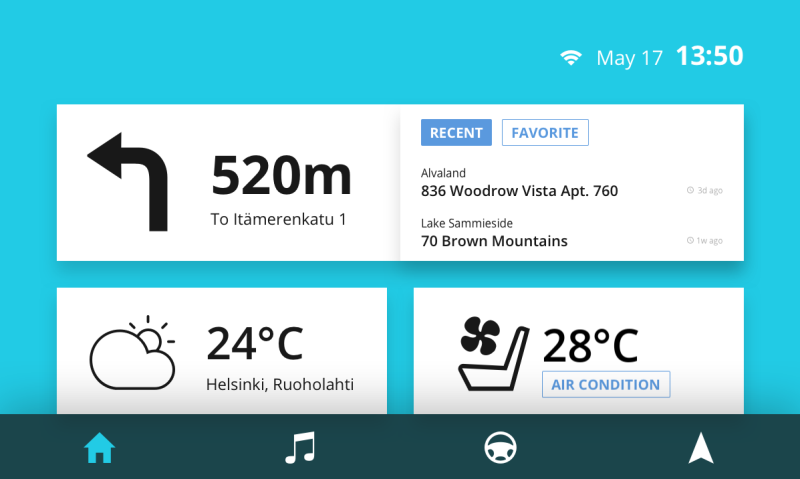
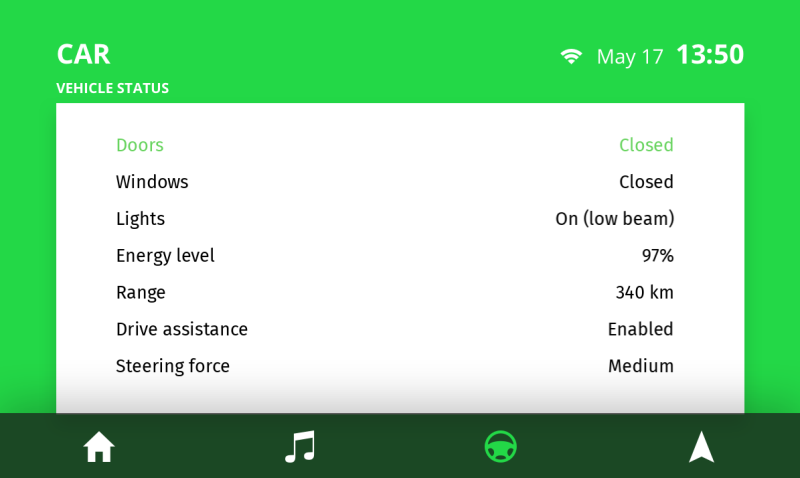
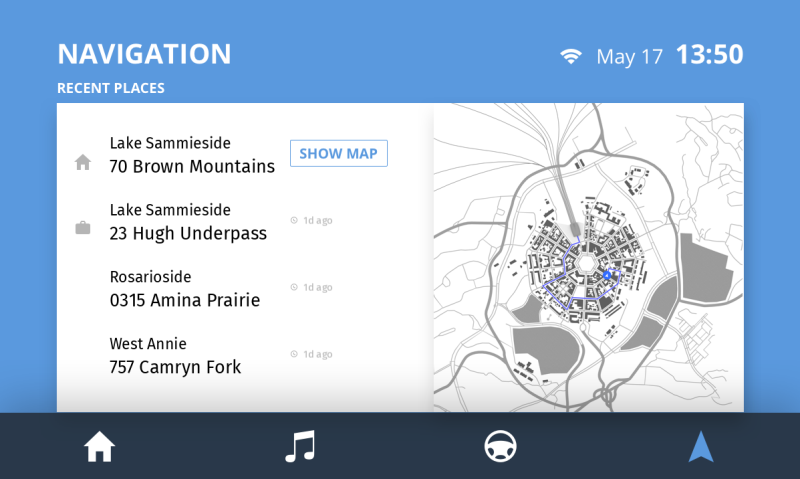
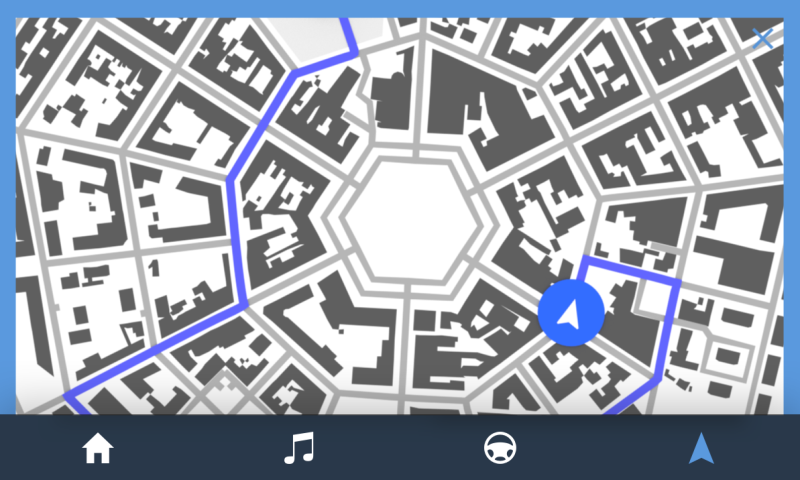
In this step of the tutorial you create keyboard navigation between the Home, Media, Car, and Navigation application screens. You use triggers with JavaScript scripts to set which node receives the key input when the user presses a key on their keyboard.
Assets for the tutorial
The starting point of this tutorial is the Keyboard input.kzprojKanzi Studio project file stored in <KanziWorkspace>/Tutorials/Keyboard input/Tool_project directory.
The <KanziWorkspace>/Examples/Keyboard input directory contains the completed project of this tutorial.
The starting point project contains the content you need to complete this tutorial:
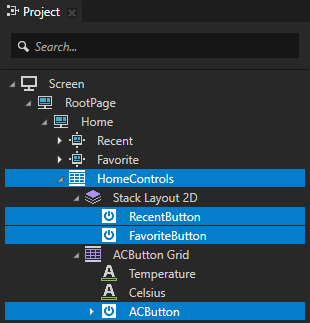
Page Host node called Home contains:
Recent and FavoritePage nodes show the recent and favorite addresses on the Home screen of the application.
HomeControlsGrid Layout 2D node positions the buttons users use to navigate between the Recent, Favorite, and AirConditionPage nodes.
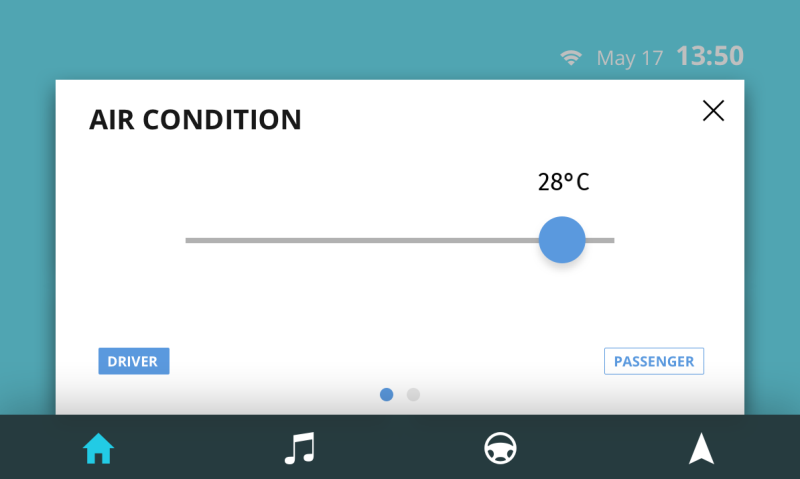
AirConditionPage Host node contains:
Driver and PassengerPage nodes with the sliders you use to set the air conditioning temperature on the AirCondition screen of the application.
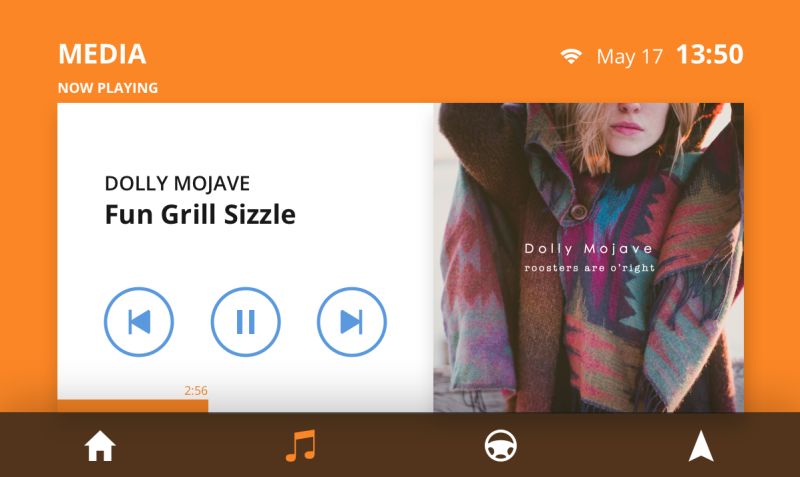
MediaPage node shows the Media screen of the application.
CarPage node contains a Grid List Box 2D node which shows the car settings on the Car screen of the application.
Page Host node called Navigation contains:
Grid Layout 2D node positions the address entries on the Navigation screen:
Address 1Grid Layout 2D node holds the button users use to navigate to the Map screen of the application.
Page node called Map contains:
Scroll View 2D node which users use to scroll the map on the Map screen of the application.
CloseMapButton 2D node which users use to close the Map window of the application and navigate back to the Navigation screen.
NavigationButtonsToggle Button Group 2D contains the toggle buttons at the bottom of the application user interface, which users use to navigate between the Home, Media, Car, and AirCondition screens of the application.
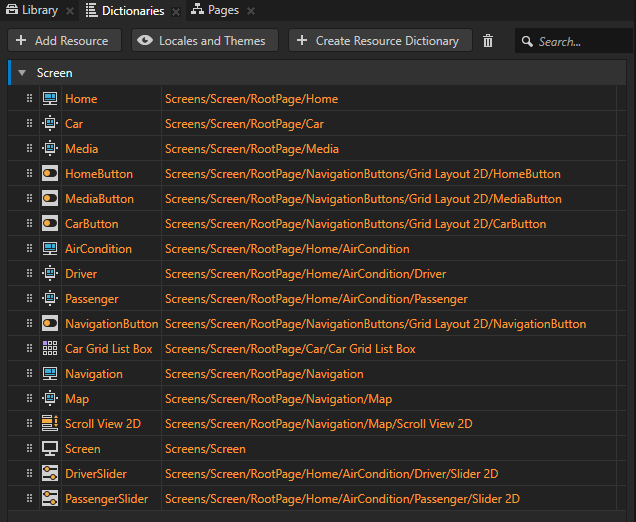
Aliases for all nodes which you access in the scripts. The aliases allow you to access those nodes when you add JavaScript scripts to the application. You can find the aliases in the Dictionaries window. To learn more about aliases and how to use them, see Using aliases.
Use keyboard keys to navigate between Page nodes
In this section you create keyboard navigation for the toggle buttons you use to navigate between the Page nodes which show the screens of the application.
To use keyboard keys to navigate between Page nodes:
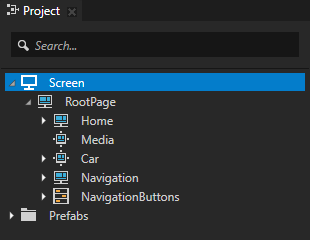
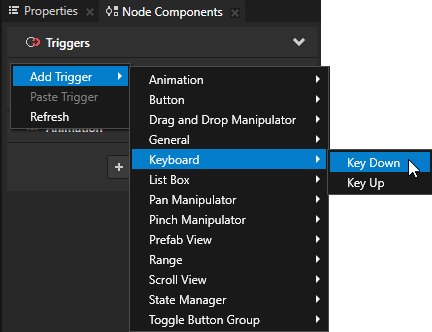
In the Project select the Screen node, and in the Node Components right-click and select Add Trigger > Keyboard > Key Down to add the Key Down trigger. By default the focus is set to the Screen in the application. The Key Down trigger is set off when the user presses a specific key on their keyboard. You set which key sets off the trigger in step 3 of this section.
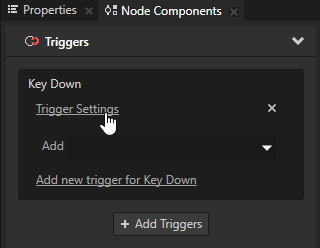
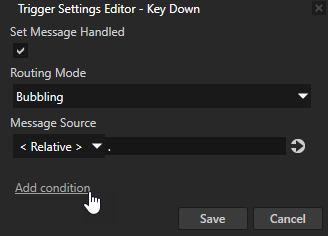
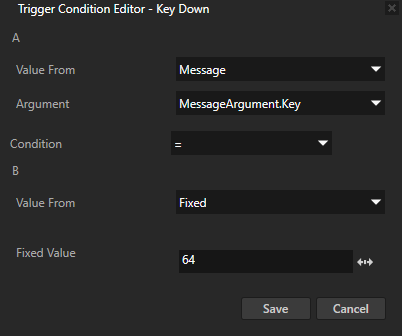
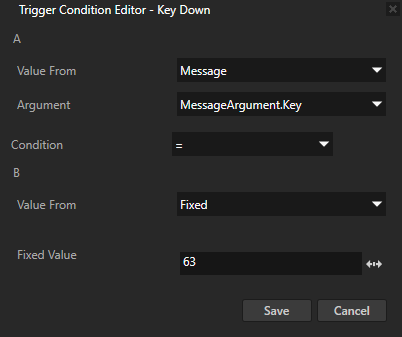
In the Node Components click Trigger Settings and in the Trigger Settings Editor click Add condition. The Trigger Condition Editor opens. Trigger conditions enable you to set which conditions must be met for the trigger to set off. Here you set the Key Down trigger to be set off when the user presses a specific key on the keyboard. You set which key sets off the trigger in the next step of this section.
In the Trigger Condition Editor set:
A
Value From to Message The Key Down trigger intercepts the messages generated when a user presses down a key on their keyboard. The message contains the key code which Kanzi uses to set off the trigger.
Condition to =
B
Value From to Fixed
Fixed Value to 64
In the Trigger Condition Editor and the Trigger Settings Editor windows click Save.
With this condition when the user presses down the Right Arrow key, the Key Down trigger executes the actions you set in the trigger. For a list of the keyboard key codes used in Kanzi, see Keyboard input codes reference.
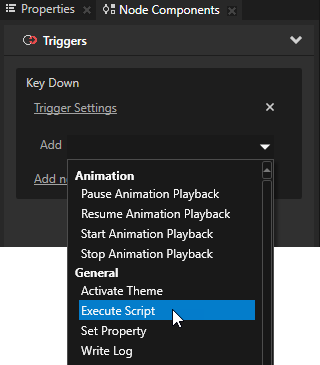
In the Node Components add to the Key Down trigger the Execute Script action. You set the application to execute a JavaScript script when the user presses the Right Arrow key.
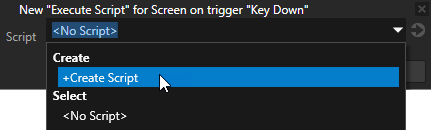
In the Execute Script window select + Create Script to create a new script. The Script Editor window opens.
In the Script Editor use this script:
// Get the HomePage Host node.
var homePage = node.lookupNode('#Home');
// The value of the Page.State property tells whether the Page or Page Host node is active:
// - If the value is 0, the node is inactive and invisible.
// - If the value is 1, the node is active and visible.
var homeActive = homePage.getProperty('Page.State');
var mediaPage = node.lookupNode('#Media');
var mediaButton = node.lookupNode('#MediaButton');
var mediaActive = mediaPage.getProperty('Page.State');
var carPage = node.lookupNode('#Car');
var carButton = node.lookupNode('#CarButton');
var carActive = carPage.getProperty('Page.State');
var navigationPage = node.lookupNode('#Navigation');
var navigationButton = node.lookupNode('#NavigationButton');
var navigationActive = navigationPage.getProperty('Page.State')
// Check which of the application Page nodes is active and navigate to the next application.
if (homeActive == 1)
{
mediaPage.navigateToThisPage();
// Set the Toggle State for the button of the next application to 1.
// Toggle StateController Property controls the state of these toggle buttons.
mediaButton.setProperty('ButtonConcept.ToggleState', 1);
}
else if (mediaActive == 1)
{
carPage.navigateToThisPage();
carButton.setProperty('ButtonConcept.ToggleState', 1);
}
else if (carActive == 1)
{
navigationPage.navigateToThisPage();
navigationButton.setProperty('ButtonConcept.ToggleState', 1);
}
You use the script to set which Toggle Button node receives the keyboard input. To try this out in the Kanzi StudioPreview, click the Preview window to set the focus to the window and press the Right Arrow key on your keyboard to navigate between the Home, Media, Car, and Navigation application screens. When each of the Page nodes is activated, the Toggle State of the Toggle Button which navigates to that Page is set to 1.
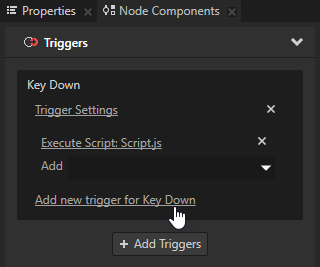
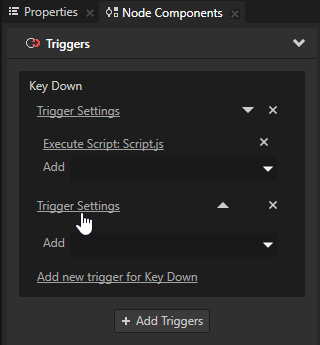
In the Project select the Screen node and in the Node Components click Add new trigger for Key Down. You use this trigger to navigate the application screens using the Left Arrow key.
In the Node Components for the Key Down trigger you created in the previous step click Trigger Settings and add a condition for that trigger, but set the Fixed Value to 63 to set off the trigger when the user presses the Left Arrow key.
Add to the trigger an Execute Script action, create a script, and in the Script Editor use this script:
// Get the HomePage Host node.
var homePage = node.lookupNode('#Home');
// Get the NavigationButtons > Grid Layout 2D > HomeButtonButton 2D node.
var homeButton = node.lookupNode('#HomeButton');
// The value of the Page.State property tells whether the Page or Page Host node is active:
// - If the value is 0, the node is inactive and invisible.
// - If the value is 1, the node is active and visible.
var homeActive = homePage.getProperty('Page.State');
var mediaPage = node.lookupNode('#Media');
var mediaButton = node.lookupNode('#MediaButton');
var mediaActive = mediaPage.getProperty('Page.State');
var carPage = node.lookupNode('#Car');
var carButton = node.lookupNode('#CarButton');
var carActive = carPage.getProperty('Page.State');
var navigationPage = node.lookupNode('#Navigation');
var navigationActive = navigationPage.getProperty('Page.State');
var mapPage = node.lookupNode('#Map');
var mapActive = mapPage.getProperty('Page.State');
// Check which of the application Page nodes is active and navigate to the next application.
if (navigationActive == 1 && mapActive != 1)
{
carPage.navigateToThisPage();
// Set the Toggle State for the button of the next application to 1.
// Toggle StateController Property controls the state of these toggle buttons.
carButton.setProperty('ButtonConcept.ToggleState', 1);
}
else if (carActive == 1)
{
mediaPage.navigateToThisPage();
mediaButton.setProperty('ButtonConcept.ToggleState', 1);
}
else if (mediaActive == 1)
{
homePage.navigateToThisPage();
homeButton.setProperty('ButtonConcept.ToggleState', 1);
}
Organize the script files in your Kanzi Studio project
In this section you rename the scripts you created in this step of the tutorial and create folders for those scripts.
To organize the scripts files in your Kanzi Studio project:
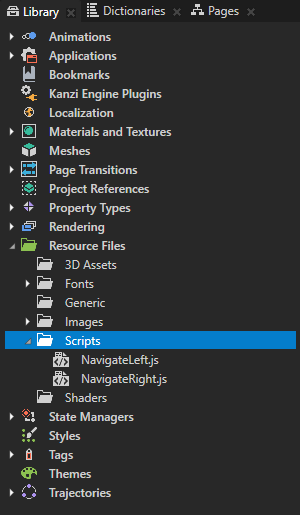
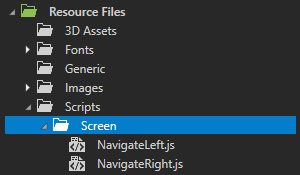
In the Library > Resource Files > Scripts rename:
Script.js to NavigateRight.js
Script_1.js to NavigateLeft.js
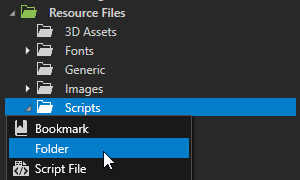
In the Library > Resource Filespress Alt and right-click the Scripts, select Folder to create a folder, name it Screen, and drag the scripts to that folder. You use this folder to store those JavaScript scripts which you call on the Screen node.
In the Preview press the Left Arrow key to navigate left between the Home, Media, Car, and Navigation application screens. You can now use the Right Arrow and Left Arrow keys to navigate between application screens.